How to see all open windows on a Mac
Published November 15, 2026 · By the Qather team · macOS 26 and later
On a Mac, windows stack up behind one another, and macOS spreads them out only when you ask. Each built-in way shows a different slice of what's open, and none of them keeps every window in view while you work. If you are coming from Windows, Is there a taskbar on a Mac? What replaces it explains where each part of the taskbar went. This guide covers the viewing methods first, then how Qather keeps the windows of the space you're on in sight.
The built-in ways to see your windows
Mission Control
Press Control ↑, press the Mission Control key, or swipe up with three or four fingers. You can set the swipe in System Settings → Trackpad → More Gestures. Mission Control shows the windows of the current desktop on each display, with your desktops along the top. Click a window to go to it.
“Group windows by application” in System Settings → Desktop & Dock puts each app's windows together in Mission Control.
App Exposé
Press Control ↓, or use the swipe down you can turn on in the same trackpad settings. App Exposé shows only the windows of the app in front, which makes it quick for one app and no help for the rest.
Move through one app's windows
Press ⌘ with the backtick key to move between the windows of the app in front. Add ⇧ to go back. It works one window at a time and only inside the app you're in.
The Window menu
Most apps list their open windows at the bottom of their Window menu. Pick one to bring it forward.
The Dock
Right-click or Control-click an app's icon in the Dock, and the app's windows are at the top of the menu.
Each of these works, but none of them keeps every window in view while you work, and none shows the windows of your other desktops next to the ones on this one.
Keep every window in view with Qather
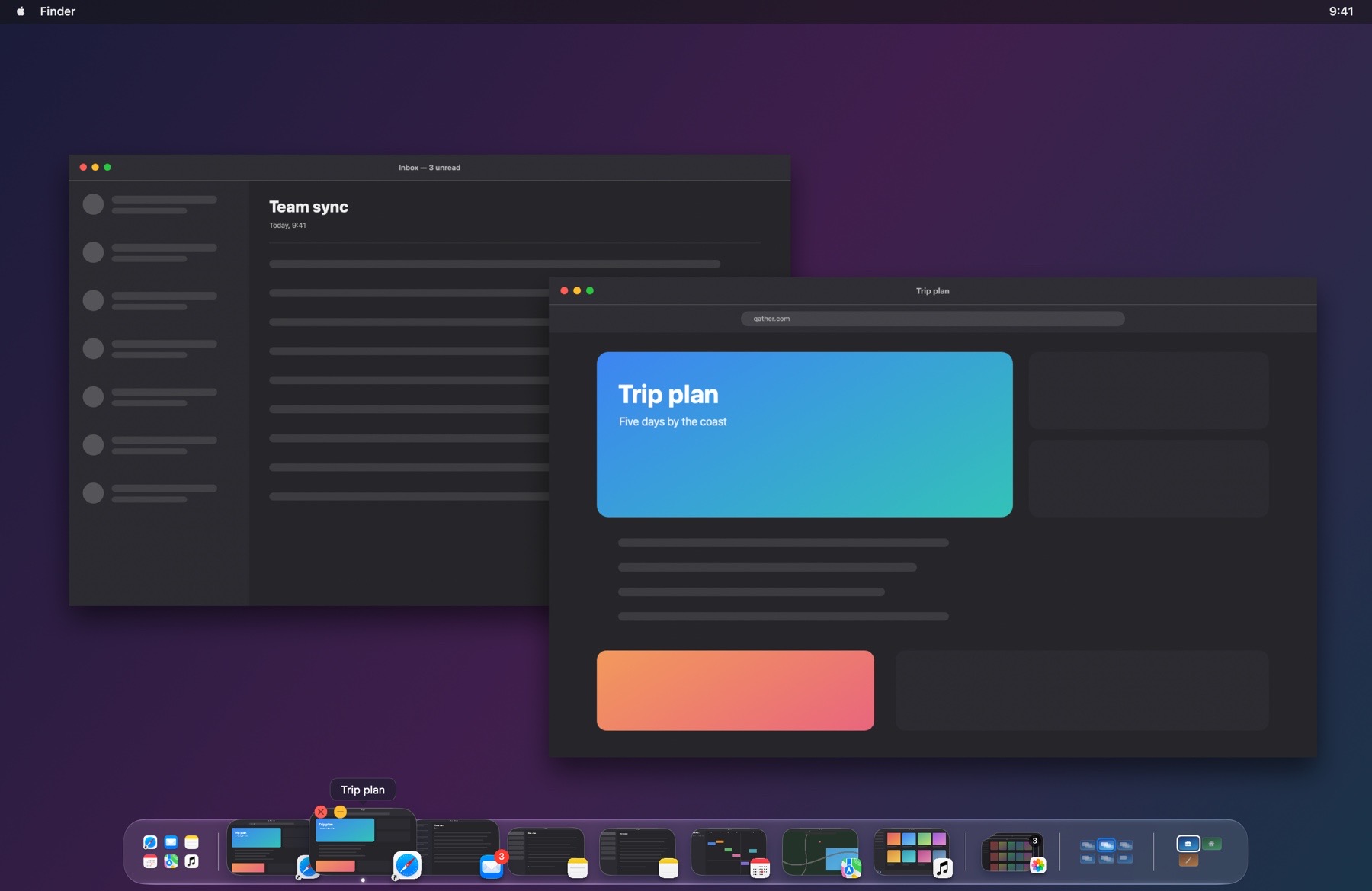
Qather adds a shelf at the bottom of the screen with every window of the space you're on. Each item is a live picture of the window with its app's icon, so two windows from the same app look different. Hover over one to magnify it and read its title. Windows from your other spaces and displays sit in a stack at the start of the shelf; an arrow shows which display each one is on, and a number shows its space. Each display can have a shelf of its own, and the grid at the end of the shelf shows your spaces: click a cell to go there.
Questions
Does Qather need Screen Recording?
It does not. Screen Recording is optional and only for the pictures. Without it the shelf shows each app's icon instead of a picture of its window. Nothing is recorded or sent.
Does it work with more than one display?
Yes, each screen can carry a shelf. The stack at the start of a shelf lists what waits on your other screens, and an arrow marks each one's display.