Where did Launchpad go in macOS 26? How to open apps now
Published November 15, 2026 · By the Qather team · macOS 26 and later
If you're used to Launchpad, macOS 26 Tahoe comes as a change: there's no Launchpad to click any more. Apps takes its place, and it works differently. Here is where to find it, how to open it from the keyboard, and how to keep the apps you use one click away.
Apps replaces Launchpad
In macOS 26, Launchpad is replaced by Apps. Its icon is in the Dock, where Launchpad's icon used to be. Open it and you see every app on your Mac. On a trackpad, the Apps gesture opens it: draw your thumb and three fingers together (System Settings → Trackpad → More Gestures).
You can also press ⌘ Space for Spotlight, type the app's name and press Return. In macOS 26, pressing ⌘ 1 in Spotlight shows all your applications.
What Apps can do
Apps lists every app, and you can type to search. It has a grid view and a list view, and it sorts apps into categories.
What Apps can't do
You can't arrange apps into your own pages or folders as you could in Launchpad.
Other ways to open apps in macOS 26
- The Applications folder in Finder: press ⇧ ⌘ A to go straight to it.
- Keep an app in the Dock by dragging it there.
- Control-click an app's icon while the app is open and choose Options → Keep in Dock.
A launcher on the shelf with Qather
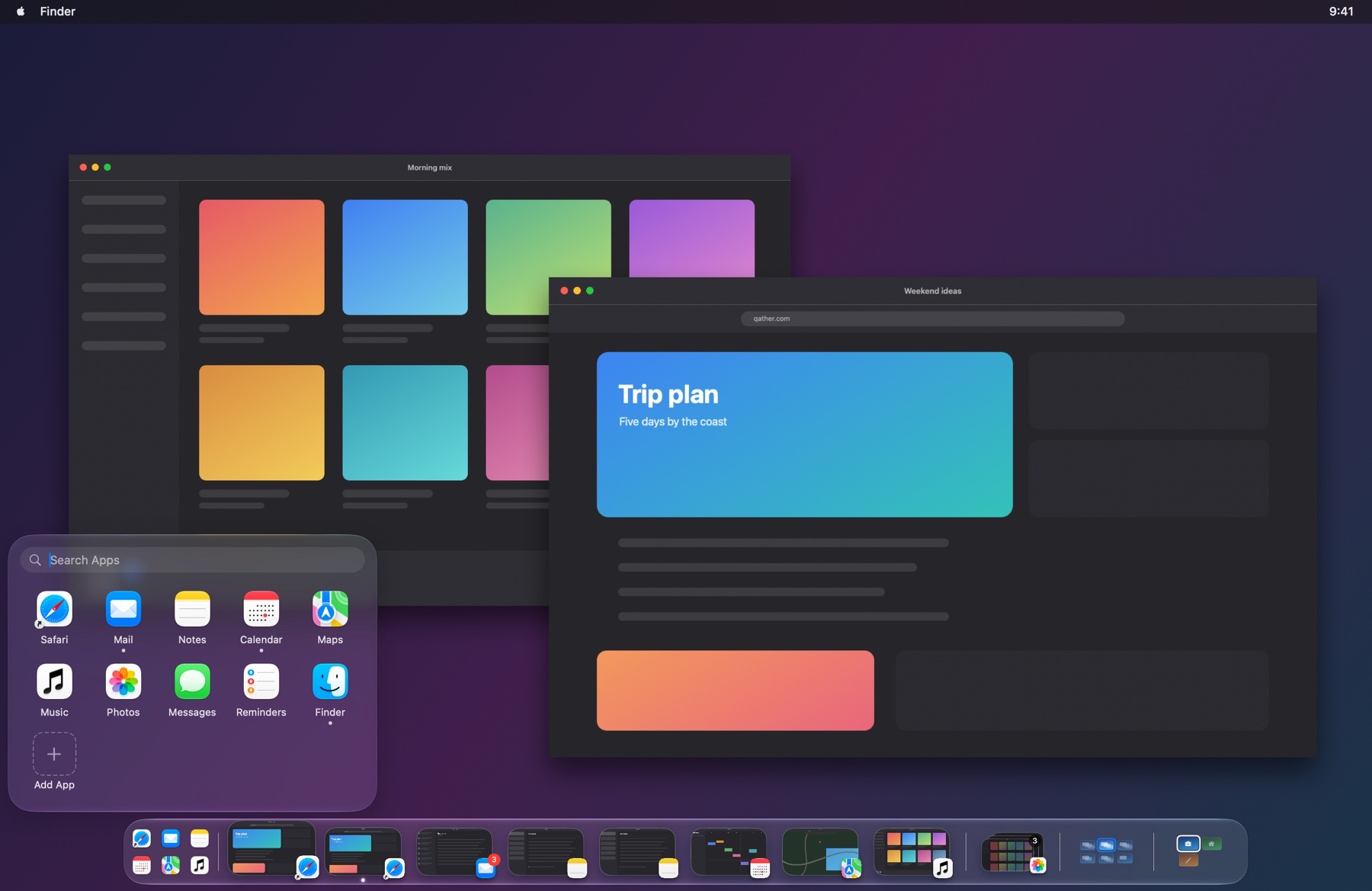
Qather puts a launcher at the start of its shelf. Click it and your apps appear five to a row. Type to search every app on your Mac, not only the ones you added. Add apps with +, and drag one out to remove it. The launcher also takes over when the Dock is hidden: Qather can hide the Dock completely, and then this is how you open an app. If you change your mind about the Dock, Qather's Settings → Shelf has the choice.
Questions
Can I choose which apps the launcher shows?
You can. Use + to add an app and drag one out to remove it. Search still finds every app on your Mac, including the ones you left out.
Do I still need the Dock?
You don't. Qather can hide it, and you can open apps from the launcher instead. How to hide the Dock on a Mac covers what changes when you do.