How to hide the Dock on a Mac, or move it to the side
Published November 15, 2026 · By the Qather team · macOS 26 and later
The Dock takes up the bottom edge of the screen. macOS can hide it until you need it, or move it to the left or the right, but it can't turn it off. This guide covers the settings, a Terminal command that some people use to make a hidden Dock wait longer, and how Qather hides the Dock completely.
Move the Dock to the side
Open System Settings → Desktop & Dock. “Dock position on screen” puts the Dock on the left, the bottom or the right. “Automatically hide and show the Dock” hides it until the pointer reaches that edge. The same page has the Dock's size and magnification, so you can make it smaller before you move it out of the way.
Hide the Dock with the keyboard
Press ⌥ ⌘ D to turn hiding on and off. It's the same setting as the one in System Settings.
What a hidden Dock still does
A hidden Dock still slides out whenever the pointer touches its edge. That keeps the Dock available, and it also means the pointer can bring it back when you don't want it. macOS has no setting to turn the Dock off.
Make a hidden Dock wait longer
Some people make a hidden Dock wait longer before it slides out with a Terminal command. It changes a hidden setting of macOS rather than a setting in System Settings, so use it at your own risk:
defaults write com.apple.dock autohide-delay -float 1000; killall DockTo undo it, run:
defaults delete com.apple.dock autohide-delay; killall DockHide the Dock completely with Qather
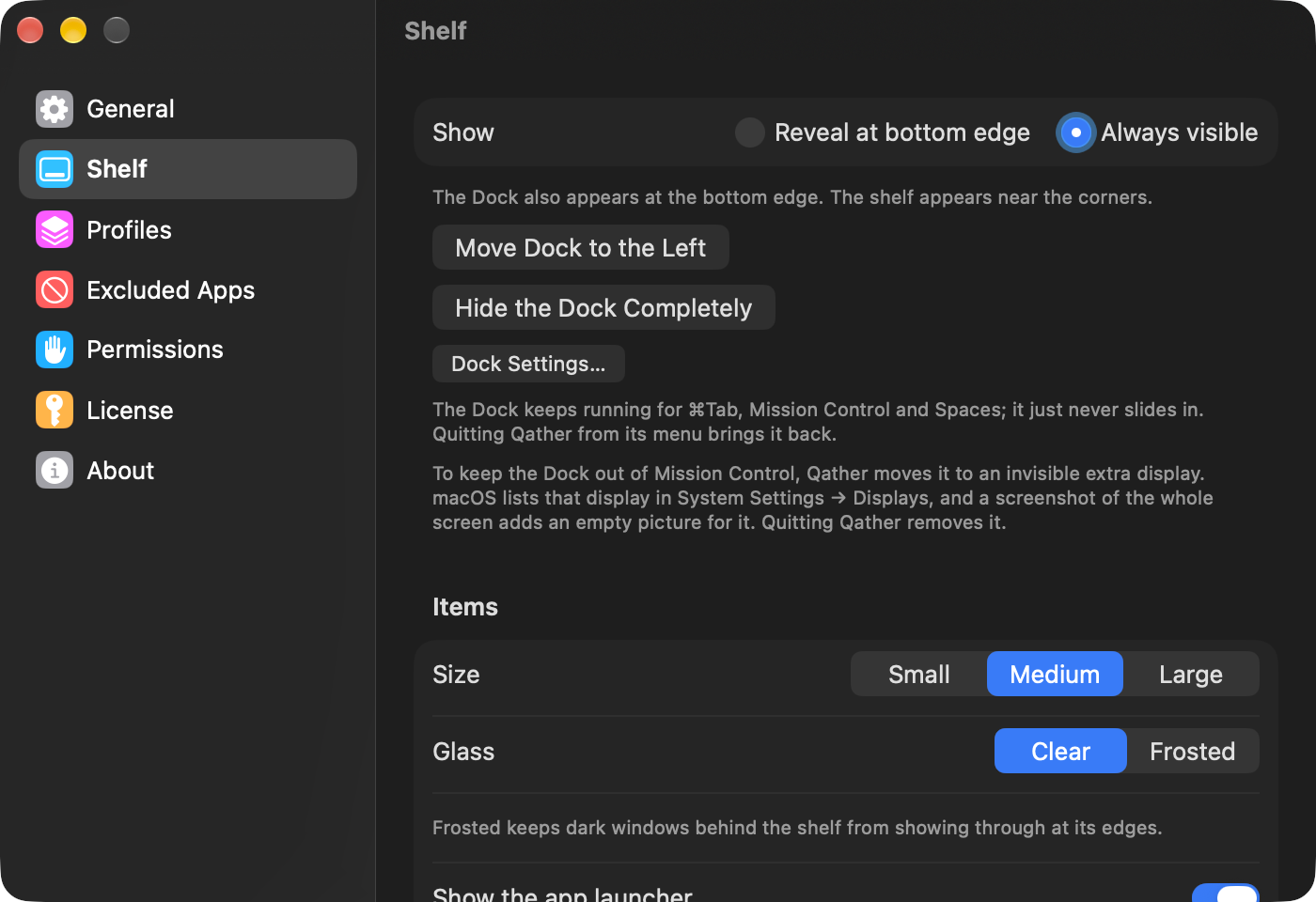
macOS doesn't let apps turn the Dock off or share the bottom edge with it. At first launch Qather asks whether to move the Dock to the left or hide it completely.
A hidden Dock keeps working for ⌘ Tab, Mission Control and Spaces, and it comes back as it was when you quit Qather. You can change the choice later in Qather's Settings → Shelf. To keep a hidden Dock out of Mission Control, Qather parks it on an invisible display. macOS lists that display in System Settings → Displays, and a screenshot of the whole screen adds an empty picture for it. Quitting Qather removes it.
With the Dock hidden, you open apps from the launcher at the start of the shelf. Where did Launchpad go in macOS 26? shows how it works.
Questions
Why does an extra display appear in System Settings?
It's where Qather keeps the hidden Dock, as described above. It goes away when you quit Qather.
How do I get the Dock back?
Quit Qather and it returns as it was, or choose to move it to the left in Qather's Settings → Shelf.